
ATS with Google Tag Manager
Learn how to add ats.js to your GTM container.
You can use ATS with Google Tag Manager (GTM) system to quickly and easily update tags on your website or mobile app and deploy analytics and measurement tag configurations from a web-based user interface.
- From https://tagmanager.google.com, click New Tag.
- Change your tag name from "Untitled Tag" to something like "ATS JavaScript".
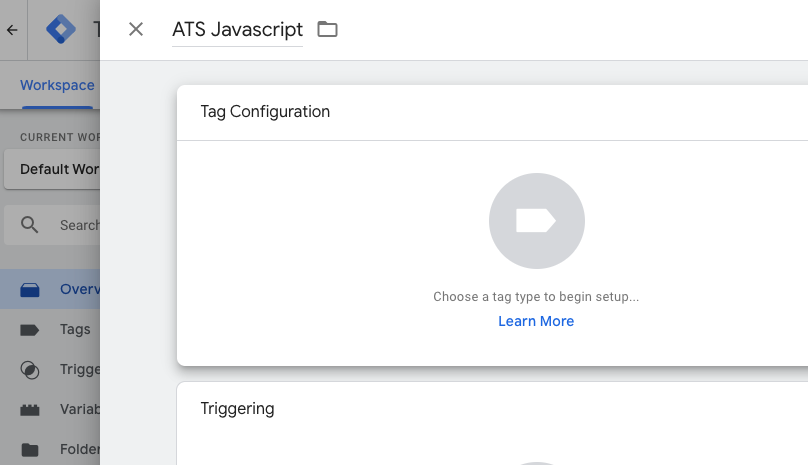
- Click in the Tag Configuration section.
- Under Choose Tag Type click Custom HTML Tag.
- Enter the snippet below, replacing your placement ID for the
REPLACE_MEvalue. You can make additional supported configuration changes in the tag.
<script>
var atsScript = document.createElement('script');
atsScript.onload = function() {
  window.ats.start({
    "placementID": REPLACE_ME,
    "storageType": "localStorage",
    "detectionType": "scrape",
    "cssSelectors": [
      "input[type=text]",
      "input[type=email]"
    ],
    "logging": "error"
  });
};
atsScript.src = 'https://ats.rlcdn.com/ats.js';
document.body.appendChild(atsScript);
</script>
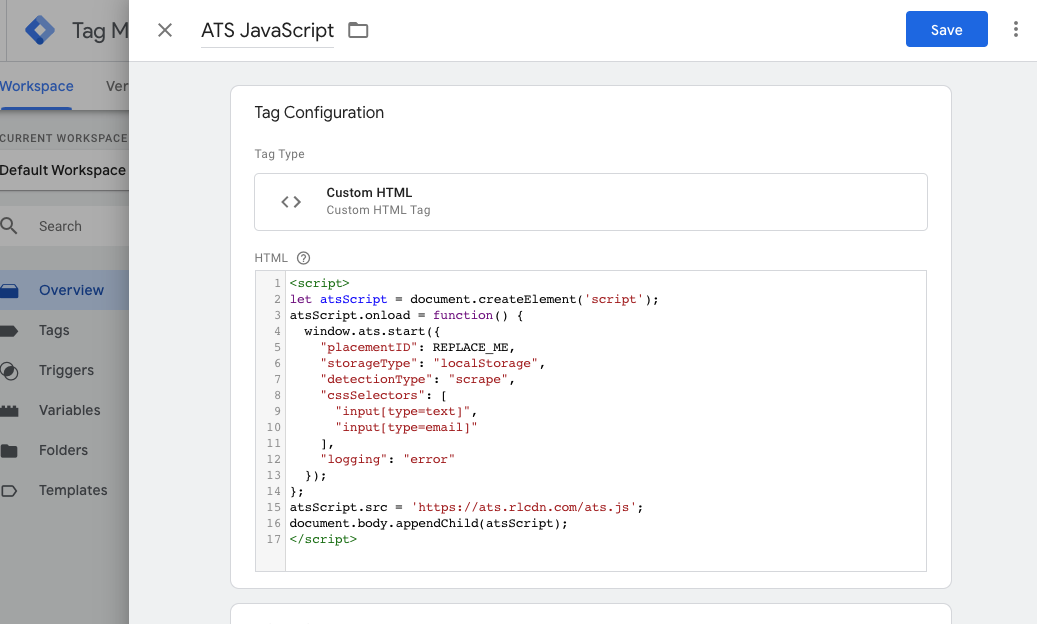
- Click into Triggering and then select the trigger you would like to connect ats.js execution to. Our recommendation is to fire on all pages.
- Save your changes.
- If you are ready to deploy ATS to your site, click Submit and then Publisher, adding a version change note if you'd like.
- QA your site to ensure ATS is working.
Updated 6 months ago
Did this page help you?