
Email Service Providers (ESPs)
Enabling ATS functionality with your ESP of choice.
You may already have a large pool of identified users in your ESP. To enable ats.js to leverage these identifiers, you will need to modify your standard newsletters or transactional emails to pass an identifier when users click through to visit your site.
Email Newsletters vs. Direct LoginIt's always best to leverage direct logins from your users. This gives the best transparency into what data is being processed on their behalf and also ensures that you have the correct user identity, as emails can be forwarded to individuals other than the original recipient.

Sending Emails to ats.js with Campaign Monitor
- In your campaign design view, add a new link or modify an existing link.
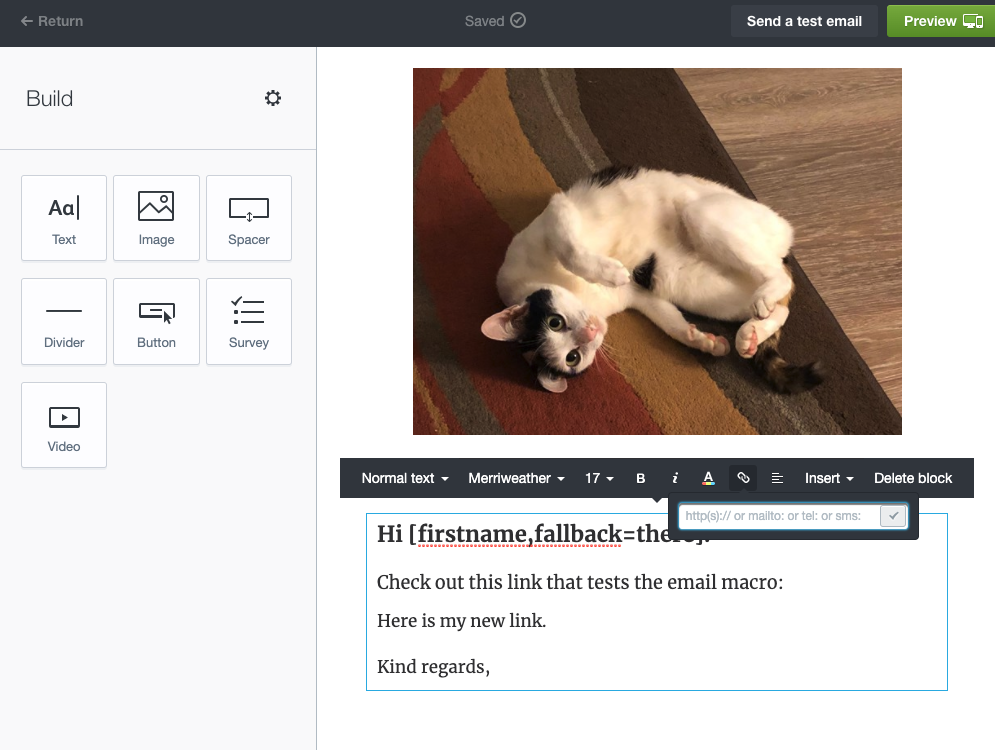
- Add a link as usual, but make sure to add an additional query parameter (remember what you use here!) and then add
[email] to represent a dynamically-populated representation of the user's email address. For example:
https://authenticated-traffic-solution.com?user_id=[email]

-
Click the green check mark to save your link.
-
Send a test email or preview the email to ensure that your link is working as expected. Your link may appear differently if you preview the initial target, but Campaign Monitor will redirect the user to the website you specified, populating the email parameter along the way.
When you preview or test the email and click through the link, you will see URL-encoded [email protected] email address on your site. This email would be replaced with your recipient's actual email address when you move out of testing.

- Now, you need to configure ats.js to detect and resolve email addresses passed through Campaign Monitor. Modify the configuration below to use your placement ID and the query parameter you used when setting up your link(s).
{ "placementID": 9999, "storageType": "localStorage", "detectionType": "url", "detectionSubject": "email", "logging": "error", "urlParameter": "user_id" } - Test once more to be sure that ats.js is picking up the email address from the URL and you're all set!
Sending Emails to ats.js with ConvertKit

-
In the body of your Broadcast or Automation email, add a new link or modify an existing link.
-
Make sure to add an additional query parameter (remember what you use!) and then add ``{{ subscriber.email_address }}` to represent a dynamically-populated representation of the user's email address. For example:
https://authenticated-traffic-solution.com?user_id={{ subscriber.email_address }}
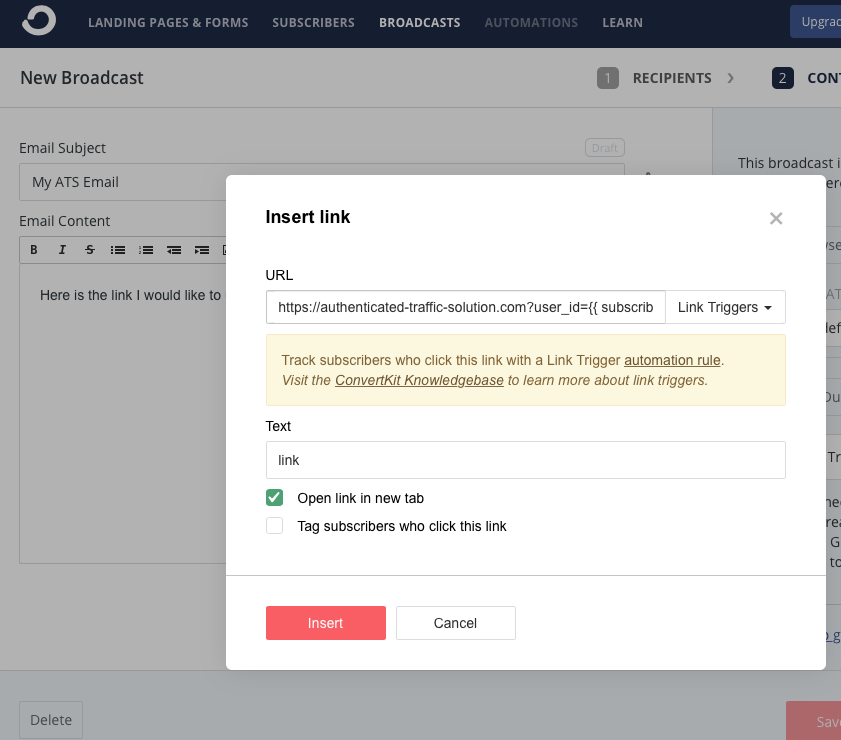
- Save your link and finish creating your email template or broadcast.
When you send the email in production, the macro will be populated with the recipient's email.
- Now, you need to configure ats.js to detect and resolve email addresses passed through mailchimp. Modify the configuration below to use your placement ID and the query parameter you used when setting up your link(s).
{ "placementID": 9999, "storageType": "localStorage", "detectionType": "url", "detectionSubject": "email", "logging": "error", "urlParameter": "user_id" } - Send a test email to yourself to confirm that everything is working as expected -- and you're done!

Sending Emails to ats.js with mailchimp
- In your campaign design view, add a new link or modify an existing link.
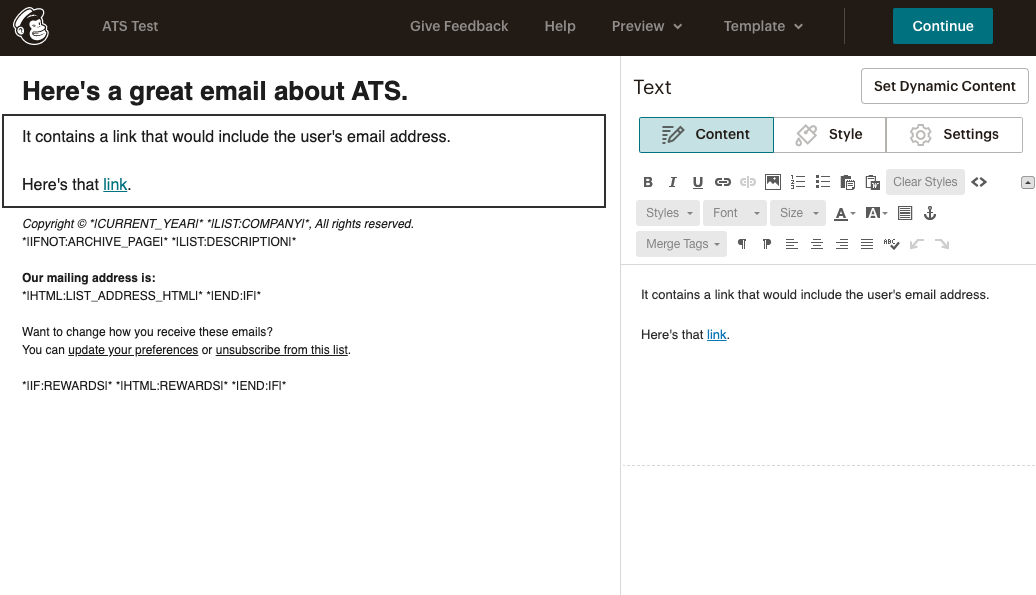
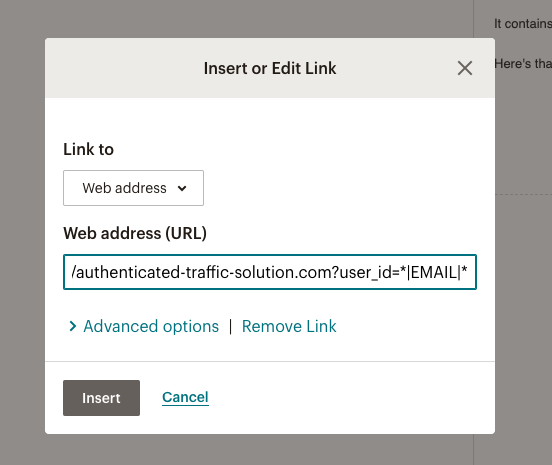
- Add/modify a link as usual, but make sure to add an additional query parameter (remember what you use!) and then add ``|EMAIL|` to represent a dynamically-populated representation of the user's email address. For example:
https://authenticated-traffic-solution.com?user_id=*|EMAIL|*
-
Click "insert" to update the link.
-
Continue creating the campaign. In previews, you should see the email macro populated with
< < Test Email Address > >. When you send the email in production, the macro will be populated with the recipient's email. -
Now, you need to configure ats.js to detect and resolve email addresses passed through mailchimp. Modify the configuration below to use your placement ID and the query parameter you used when setting up your link(s).
{ "placementID": 9999, "storageType": "localStorage", "detectionType": "url", "detectionSubject": "email", "logging": "error", "urlParameter": "user_id" } -
Send a test email to yourself to confirm that everything is working as expected -- and you're done!
Sending Emails to ats.js with Aweber
-
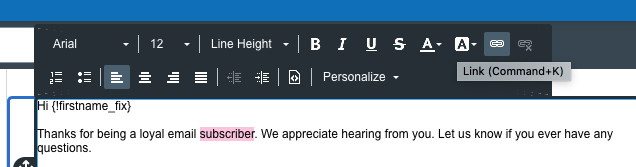
In the message editor, select the text you would like to hyperlink and click the "link" icon to add a destination URL.
-
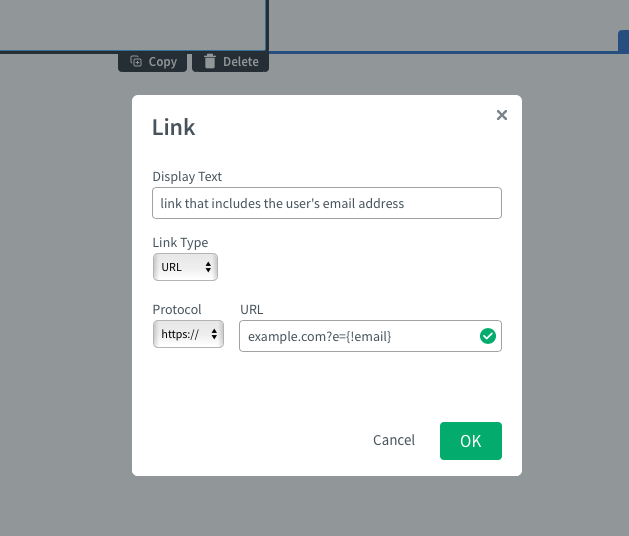
Add the target URL and append an additional query parameter, such as
?e=. Input the macro for a subscriber's email address after the query parameter, e.g.?e={!email}.
-
Finish creating your message. When you send the email in production, the macro will be populated with the recipient's email.
-
Now, you need to configure ats.js to detect and resolve email addresses passed through AWeber. Modify the configuration below to use your placement ID and the query parameter you used when setting up your link(s).
{ "placementID": 9999, "storageType": "localStorage", "detectionType": "url", "detectionSubject": "email", "logging": "error", "urlParameter": "e" } -
Send a test email to yourself to confirm that everything is working as expected -- and you're done!
ExactTarget can use a%%emailaddr%%macro to pass an email.
%%=SHA256(LOWERCASE(TRIM(emailaddr)))=%%

Please find documentation for each hashing method below.
SHA256
SHA1
MD5

Adding an email macro with Klaviyo is quite simple. You'd simply add an email macro to the url like so: www.example.com/{{ email }}
Documentation from their website can be found here.

Please find documentation from their website here.

You'll want to use the following macro within your url: ?email={USER.EMAIL}
Blueshift documentation can be found here.
Updated 6 months ago