
2. Initialize the iOS SDK
The ATS Mobile SDK is DeprecatedLiveRamp has made the decision to sunset the ATS Mobile SDK effective September 30, 2026 and transition all clients to ATS API. For more information, see our announcement, or check out "ATS API Implementation Guide for Mobile Publishers".
Once the SDK has been added to your project, you will need to initialize it. The initialization process will run on a background thread. This will prepare the SDK for interactions with the user, and your application.
SDK initialization requires a Configuration ID which is generated in Console. To learn more, see Implementing ATS Mobile SDK.
Consent Requirements
The SDK will automatically perform a geolocation check to ensure consent is properly set for GDPR and CCPA. Learn what this means for your application below:
- To successfully initialize and use the SDK, user consent needs to be present per IAB standards (i.e. in
UserDefaults). - The SDK will fail to initialize if there is no consent given for TCF purposes 1 to 10 and if LiveRamp is not listed as a vendor (ID
97). - If you are running the SDK outside of the GDPR and GPP/CCPA legislations, command the SDK to proceed without checking for consent (Swift):
LRAts.shared.hasConsentForNoLegislation = true. - Dynamic TCF and GPP/CCPA consent monitoring and handling are applied. This ensures if consent is revoked, SDK will reset (clear cached data) and all SDK-related APIs will stop working. The SDK will automatically re-initialise and APIs will work again if consent is given during lifecycle of the application.
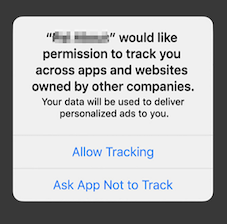
- For iOS devices, LiveRamp requires the user to select Allow Tracking for envelopes to be successfully fetched.
How to Initialize the iOS SDK
1. Import the SDK module to where you want to use it
import LRAtsSDK#import <LRAtsSDK/LRAtsSDK-Swift.h>2. (Optional, but recommended) Implement the SDK delegate methods. This will allow the host application to track the SDK initialization status
LRAts.shared.delegate = self[[LRAts shared] delegate] = self;3. Prepare the SDK Configuration
Create configuration object by providing your Config ID.
let lrAtsConfiguration = LRAtsConfiguration(configID: <#String#>)LRAtsConfiguration *lrAtsConfiguration = [[LRAtsConfiguration alloc] initWithConfigID:<#(NSString * _Nonnull)#>];4. Initialize the SDK
Initialize SDK with LRAtsConfiguration object. The initialization runs on a background thread to avoid blocking your UI.
Check for ATT consent before initializing our SDK.
Test Mode DeprecationTest mode was deprecated in v2.9.0 and fully removed from v3.0.0 and onwards. During the deprecation phase, an alert will be returned if the value of
isTestModeis set totrue.If you are on version 3.0.0 onwards, make sure to always set the value of
isTestModetofalse.To test your workflow, we recommend that you create another placement for testing purposes. See “Create an ATS Placement” to learn how to do this.
LRAts.shared.initialize(with: lrAtsConfiguration) { success, error in
    if success {
        print("SDK is Ready")
    } else {
        print("SDK init error: \(String(describing: error))")
    }
}
[[LRAts shared] initializeWith:lrAtsConfiguration completion:^(BOOL success, NSError * _Nullable error) {
if (success) {
NSLog(@"init successful");
} else {
NSLog(@"init failure");
}
}]
Init with Unapproved ATS PlacementFrom v3.0.0 onwards, the SDK will not be initialised with unapproved ATS placements. To check your placement’s status, log in to Console, and select Placements from the navigation menu.
If your ATS placement has not been approved yet, talk to your LiveRamp representative.
Updated 25 days ago