
Generate and Pass Identity Envelopes With LiveRamp Secure Signals Adapter
The ATS Mobile SDK is DeprecatedLiveRamp has made the decision to sunset the ATS Mobile SDK effective September 30, 2026 and transition all clients to ATS API. For more information, see our announcement, or check out "ATS API Implementation Guide for Mobile Publishers".
If you are working with Google secure signals, you can implement LiveRamp's secure signals adapter with ATS Mobile SDK to generate identity envelopes or Google-permissioned envelopes to be used within AdMob's Mobile Ads (GMA) SDK. This implementation automatically passes identity envelopes down to Google Ad Manager's Open Bidding (EBDA).
The guide on this page applies if you have an existing GMA SDK implementation for iOS or Android. If you don't have it yet, see Google's documentation on AdMob to learn how you can get started.
To learn more about AdMob's Mobile Ads SDK, see Google's guides for iOS and Android.
LiveRamp Secure Signals Adapter is Available in BetaTalk to a LiveRamp representative get help with implementation.
Prerequisites
- You must have Google secure signals implemented. If you haven't yet, work with your Google Account Manager to activate it. Within Google Ad Manager (GAM), ensure that:
- Secure signal sharing is allowed
- LiveRamp is enabled as a secure signals partner
- For Android: the latest version of Google Play services (at least 22.2.0)
- For iOS: the latest version of Google Mobile Ads SDK (at least 10.7.0)
- An ATS placement with all your bundle IDs included. To learn how to create a placement ID, see Create an ATS Placement.
Implementation for SDK v3.0.0 and Above
If you are using ATS Mobile SDK version 3.0.0 or later, you don't need to follow any of the instructions in this article since all functionalities are available out-of-the-box for these versions. An identity envelope will automatically be included in your ad requests if LiveRamp is enabled as a secure signals partner and all prerequisites above have been fulfilled.
Make sure to initialize the LRAtsSDK as you normally would as early as feasibly possible, and retrieve an envelope with an identifier by calling getEnvelope.
1. Obtain the AppID/Config ID in Console
Only applicable for Android SDK v2.10.0 or iOS SDK v2.9.0 and below.
Your ATS placement doesn't need to be approved yet to obtain a Config ID.
Before initializing the SDK, you must first obtain the Config ID in Console.
- Log in to Console.
- Go to ATS > Mobile.
- Click New.
- Enter a configuration name and select a placement.
- Click Let's Go.
A Config ID will be automatically generated and displayed in the "SDK Configurations" area.
2. Install the ATS Mobile SDK and Secure Signals Adapter
Only applicable for Android SDK v2.10.0 or iOS SDK v2.9.0 and below.
In this step, you will install the ATS Mobile SDK and include it in the call by Google to fetch signals.
Android
The secure signals adapter is already bundled with the ATS Mobile SDK. To learn how to install the ATS Mobile SDK, see Gradle Integration or Manual Integration. Note that you should not progress to the initialization step of the ATS Mobile SDK, you should only install it.
Make sure to include the at least v2.1.0 of the ATS Mobile SDK.
iOS
The LRAtsSDKMediationAdapter for iOS will automatically pull in the LiveRamp ATS Mobile SDK as an upstream dependency.
To install with Swift Package Manager:
- in Xcode, go to File > Add packages.
- In Search or Enter Package URL, enter:
https://github.com/LiveRamp/ats-sdk-ios-google-adapter - Click Add Package.
To install with CocoaPods:
- Add the following line to your Podfile:
pod 'LRAtsSDKMediationAdapter' - Open Terminal and go to the directory where
Podfileis located. - Execute
pod installto install theLRAtsSDKMediationAdapter.
3. Initialize the Secure Signals Adapter for GMA SDK
Only applicable for Android SDK v2.10.0 or iOS SDK v2.9.0 and below.
Follow the steps below to successfully initialize the ATS Mobile SDK through Google’s SDK:
a. Set Consent State Accordingly
Before initializing the GMA SDK, make sure the correct consent is set according to the region.
- For EU: In the EU consent is required and must be set (preferably by a CMP). Without consent, the SDK will not initialize.
- For U.S.: Currently in the U.S. consent is not required. The SDK will read the value of the IAB CCPA string if it is set or provided.
- If consent checks do not apply to the regions where you are running the SDK, you can command the SDK to proceed without checking for consent:
LRAtsMediationAdapter.hasConsentForNoLegislation = trueLRAtsMediationAdapter.setHasConsentForNoLegislation(true) - For iOS devices, LiveRamp requires ATT Consent.
b. Configure the Adapter
You must provide the Config ID you've obtained in Step 1 to configure the adapter before initializing the GMA SDK. Note that configuring the adapter will not trigger anything, envelopes will only be generated once you initialize the GMA SDK.
LRAtsMediationAdapter.configure(atsConfiguration: LRAtsConfiguration(appId: "<#your app/config id#>"))LRAtsMediationAdapter.configure(LRAtsConfiguration(configurationId = "<#your app/config id#>"))For iOS, you must check for ATT consent before initializing the GMA SDK.
c. Set the Identifiers
You can pass the identifiers before or after initializing the GMA SDK, however, we recommend you to do this as early as possible to ensure identity envelopes are obtained in time for the ad request.
LRAtsMediationAdapter.setIdentifier(identifier: LREmailIdentifier(email: "<#email#>"))LRAtsMediationAdapter.setIdentifier(LREmailIdentifier(email = "<#email#>"))If your ATS placement is enabled for Google SSP and Google envelope is detected, the secure signal call returns a Google-permissioned envelope. If not, it will return an ATS envelope.
To view all available methods and properties, see "iOS Methods for LRAtsMediationAdapter" and "Android Methods for LRAtsMediationAdapter".
4. Verify the Envelope Is Retrieved and Sent to Google
After the GMA SDK intitialization (preferably after the app has just been installed) and the user has provided their identifier, you can verify if your implementation is running properly.
Verify That an Envelope Is Retrieved
After Google’s initialization callback is fired, use a proxy tool such as Charles to filter your network calls to search for the api.rlcdn domain.
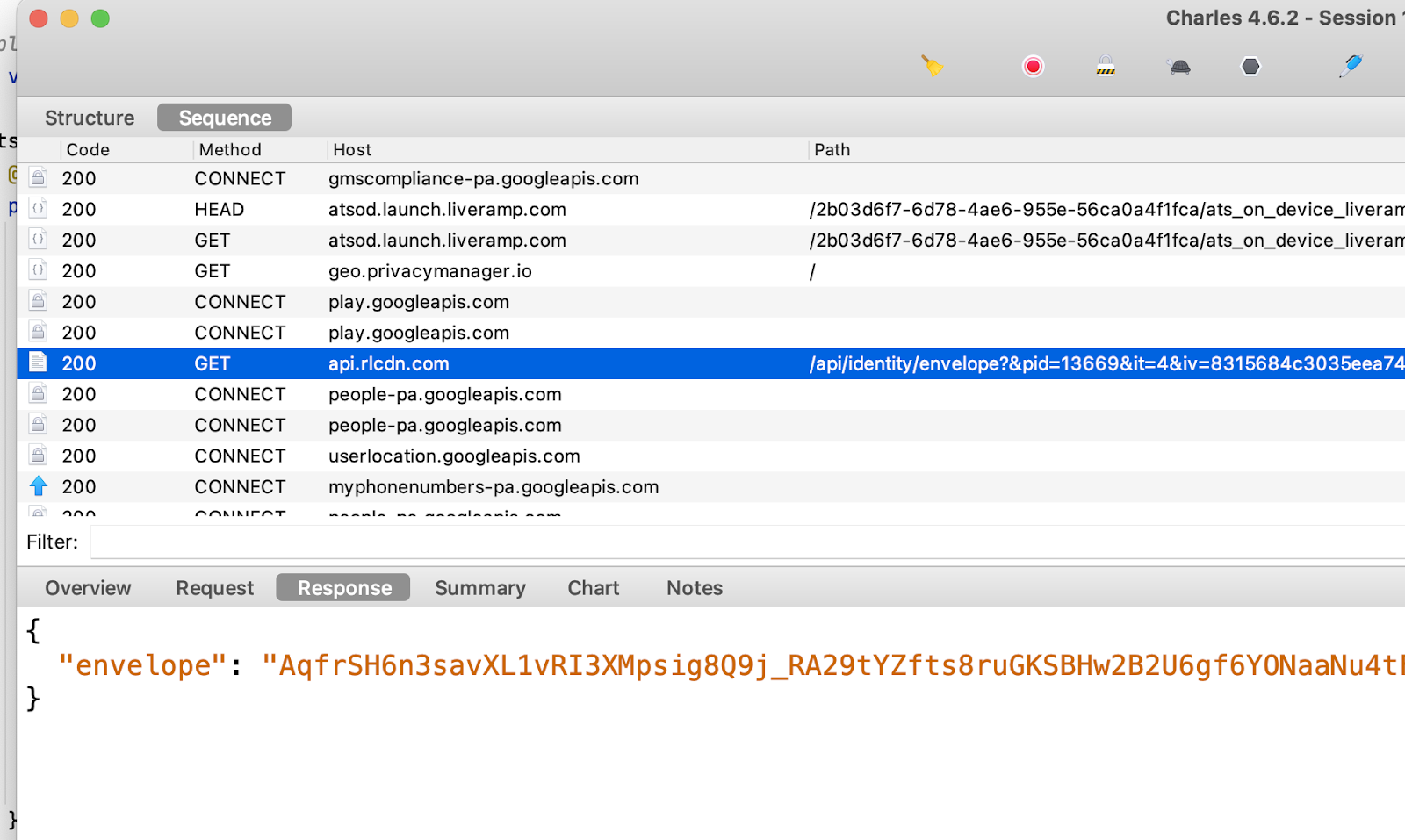
Your success criteria should be the 200 code (the JSON payload may vary). This confirms that an envelope is retrieved for the given user.
Verify That the Envelope Is Sent
After making sure an identity envelope is retrieved, you can now check if the envelope is sent in the Google ad request. To do this, load an ad placement that is enabled for open bidding and capture the outgoing GMA SDK ad request (you may need to enable network tracing).
Below is a URL example of a successful request intercepted with Charles. The a3p query parameter contains all the bid signals from from Google.
https://pubads.g.doubleclick.net/gampad/ads?....a3p=CjEqL2NvbS51aWQyLnNlY3VyZXNpZ25hbHMuZ21hLlVJRDJNZWRpYXRpb25BZGFwdGVyCp4BEgYIAhABGAAaBggCEAEYACJkQXVpMGJrcUUtN3VVYlNQNk40c3pKeVZ3LWpDMUNzcU1YcXZuVjFHUENpN0tSaDlXNGlKVG9vRG9wXy16X1owN1YtdVBqdTl5bzJ1YW1NX2M1M1FnU1J1SHU3d21WSTN6TV9nTSomY29tLmxpdmVyYW1wLmF0cy5MUkF0c01lZGlhdGlvbkFkYXB0ZXIKNSozY29tLnVpZDIuc2VjdXJlc2lnbmFscy5pbWEuVUlEMlNlY3VyZVNpZ25hbHNBZGFwdGVy&jsv=sdk_20190107_RC02-production-sdk_20230601_RC00
Based on the example above, the value of the a3p parameter is:
CjEqL2NvbS51aWQyLnNlY3VyZXNpZ25hbHMuZ21hLlVJRDJNZWRpYXRpb25BZGFwdGVyCp4BEgYIAhABGAAaBggCEAEYACJkQXVpMGJrcUUtN3VVYlNQNk40c3pKeVZ3LWpDMUNzcU1YcXZuVjFHUENpN0tSaDlXNGlKVG9vRG9wXy16X1owN1YtdVBqdTl5bzJ1YW1NX2M1M1FnU1J1SHU3d21WSTN6TV9nTSomY29tLmxpdmVyYW1wLmF0cy5MUkF0c01lZGlhdGlvbkFkYXB0ZXIKNSozY29tLnVpZDIuc2VjdXJlc2lnbmFscy5pbWEuVUlEMlNlY3VyZVNpZ25hbHNBZGFwdGVy
You can then base64-decide the a3p parameter, and verify that LiveRamp signal name (com.liveramp.ats.LRAtsMediationAdapter) and the envelope value you've previously retrieved are there. In the example below, you can find both objects in bold:
1_/com.uid2.securesignals.gma.UID2MediationAdapter
��"d_Aui0bkqE-7uUbSP6N4szJyVw-jC1CsqMXqvnV1GPCi7KRh9W4iJTooDop-zZ07V-uPju9yo2uamM_c53QgSRuHu7wmVI3zM_gM&com.liveramp.ats.LRAtsMediationAdapter5*3com.uid2.securesignals.ima.UID2SecureSignalsAdapter`
Updated 25 days ago