
You can use the Clean Room UI to:
- Generate an API key (also known as an "API secret") and create an associated API user service account.
- Confirm the API user has been added as a user in the organization.
- Add the API user as a user to relevant clean rooms.
LiveRamp Clean Room supports one API key and one API user per organization. The API user can be added as a user to one or more clean rooms in the organization. Any clean room where the API user has been added with admin permissions will have API access to fetch data.
Generate an API Key
-
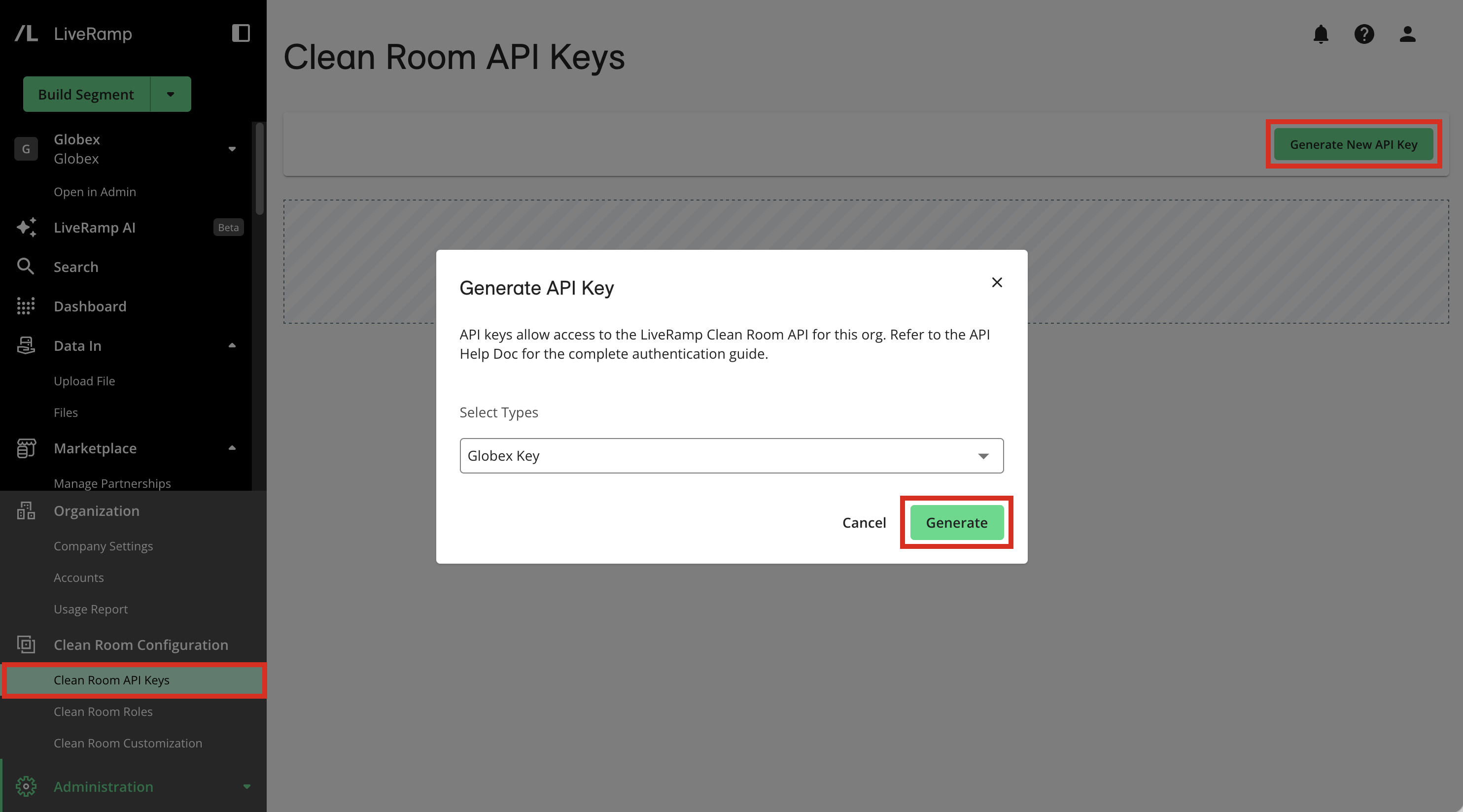
Go to the organization where you want to enable the API. In the main menu, select Admin → API Keys.
-
Click Generate New API Key. By default, the Generate API Key dialog displays your organization's API key type. The "Partner API Key" value is not applicable.
-
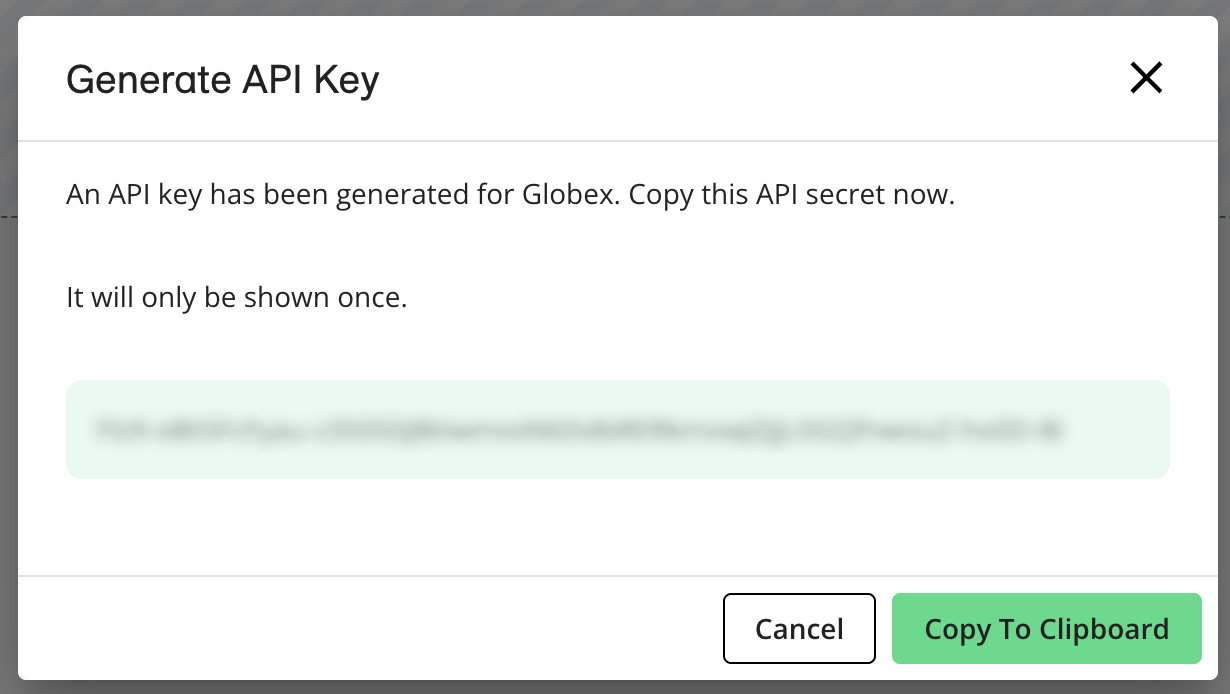
Accept the default API key type, which is named for your organization, and click Generate. The dialog displays the API secret.
-
Click Copy to Clipboard and securely store the API secret. You need it for later steps. Also, note the client ID.
Confirm the API User Has Been Added to the Organization
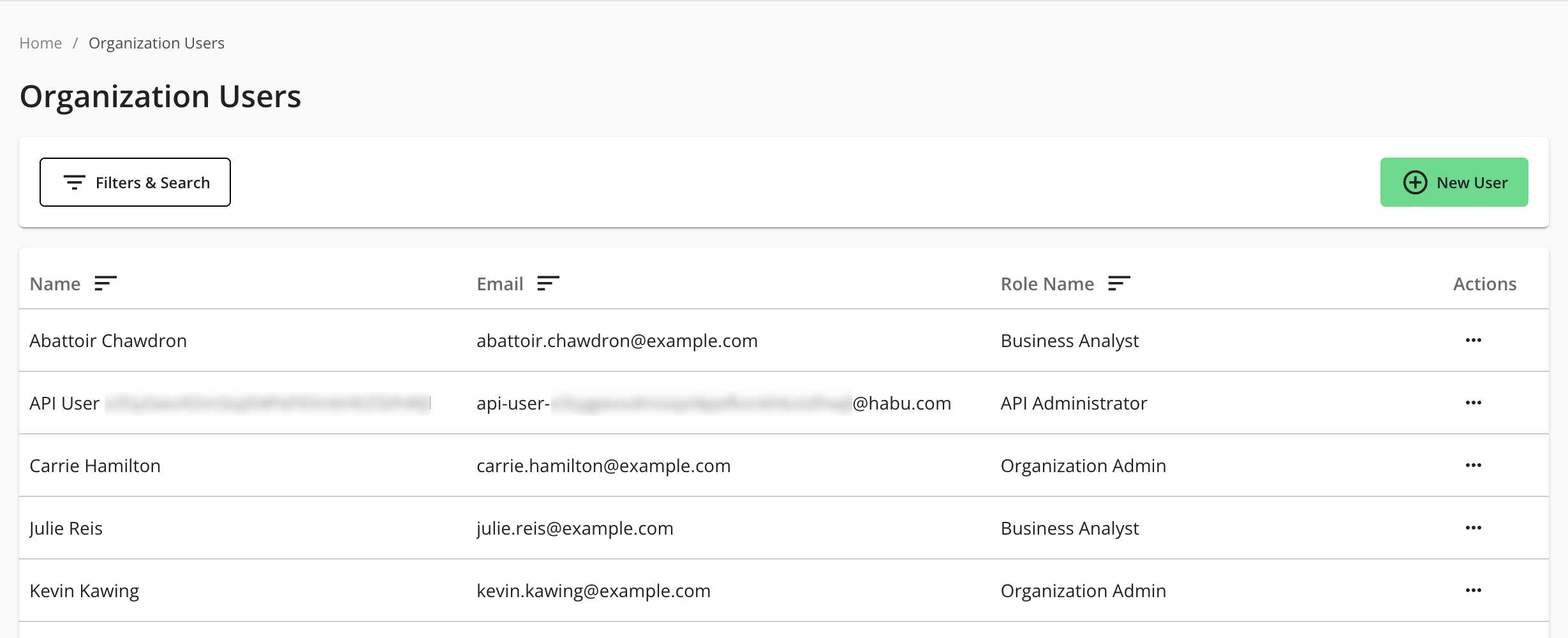
Go to Admin → Users. Confirm that a user has been created for the API Key with the API Administrator role.
Add the API User to a Clean Room
-
Go to the clean room where you want to enable the API.
-
From the Clean Room menu, select Users.
-
Click New User. The Organization Users dialog appears.
-
Assign the Admin permission to the API user, and then click Add User.
Change the API Secret
You can change the API secret as needed from the Manage API Key page.
- From the Admin menu, select API Keys.
- On the Manage API Key page, click Rotate API Secret next to the Client ID of the API client key you want to change.
Other users or processes using the old API secret will no longer function until the secret key is updated in your scripts and API calls.